
How to Convert Videos into Trackable SCORM Modules Using Kriya Learn
Video content is engaging, but only SCORM modules provide the crucial tracking data needed for e-learning and compliance. This guide walks you through transforming any video into a trackable course using Kriya Learn, the native SCORM authoring tool within the Kriya Stack platform.
Transform Your Videos into Trackable SCORM Modules: A Step-by-Step Guide
In the world of e-learning and LMS (Learning Management System) administration, video is king. But while videos are engaging, they often fall short in one crucial area: tracking learner progress and completion. You need to know if a learner finished the video, and, more importantly, if they understood the content.
The solution? Converting your videos into a SCORM (Sharable Content Object Reference Model) module. SCORM is the technical standard that allows your content to "talk" to your LMS, sending back vital data like completion status, score, and time spent.
This guide will walk you through the simple, yet powerful, process of turning any video into a fully functional, trackable SCORM module, ready to upload to your Kriya Stack LMS.
Why Convert Videos to SCORM?
Before diving into the "how," let's quickly solidify the "why." Using a video on its own is often referred to as "passive learning." SCORM conversion moves it to active learning.
Feature
| Feature | Plain Video File (.mp4) | SCORM Module (.zip) |
|---|---|---|
Tracking | Simple view count | Detailed completion, score, time |
Interactivity | Play/Pause | Quizzes, integrated activities |
LMS Compatibility | Requires specific player support | Universal standard for all major LMSs |
Certification | Difficult to prove completion | Provides trackable proof of mastery |
The Essential Tools You'll Need For Creating SCORM Trainings
Converting a video into a SCORM module doesn't require complex external software. For users of the Kriya platform, the entire process can be handled within the Kriya Learn environment.
- Your Video File: A finished video in a common format (e.g., MP4).
- Kriya Learn: Kriya Learn is not just a delivery platform; it is a powerful native SCORM authoring tool that allows you to upload media, integrate assessments, and package the final content directly into the necessary SCORM standard.
Step-by-Step SCORM Conversion using Kriya Learn
Step 1: Import the Video into Kriya Learn
Open Kriya Learn and create a new course project. You will upload your video file directly into the content editor.
- Pro Tip: Ensure your video is high-quality but also compressed enough for smooth streaming. A good bitrate is key for efficient e-learning delivery.
Step 2: Add Interactivities and Assessments (The SCORM Value-Add)
This is where you move beyond a passive viewing experience. Using Kriya Learn's native tools, you can seamlessly add elements that require learner engagement, directly overlayed onto or placed alongside the video.
- Knowledge Checks/Quizzes: Insert a short quiz (2-3 questions) at the end of the video, or use time-based interactivities to pause the video and present a question, forcing the learner to confirm understanding before proceeding.
- Navigation Restrictions: Set the video to be non-seekable until the learner has finished watching a specific segment. This ensures critical training information is fully consumed.
- Interactivities: Use Kriya Learn's interactive components to embed questions or specific tasks directly related to the video content, ensuring the learner is actively processing the material.
Step 3: Configure SCORM Settings
Within Kriya Learn's publishing settings, you must define precisely how the module will communicate Completion/Success to the LMS. This is highly customizable by the training creator.
- Select SCORM Standard: Choose your preferred version. SCORM 1.2 is widely compatible, and SCORM 2004 offers more detailed tracking options.
- Define Completion/Success: This setting tells the LMS when the learner is "done" and whether they succeeded or failed. The criteria are set by the training creator and can be based on several factors:
- Player Score: The learner must achieve a minimum percentage score on any integrated knowledge checks or assessments.
- Number of Attempts: Setting a limit or minimum on the number of times a learner can attempt the training or assessment.
- Timer/Time Spent: The learner must spend a specific minimum duration interacting with the content.
- Content Consumption: The learner must view the video content in its entirety and interact with all required components.
- Identifyer: Give your course a clear name and unique identifier for your course catalogue.
Step 4: Publish and Package the SCORM Module
Once the settings are configured, Kriya Learn will handle the "Publish" step. The platform will take your video, the integrated interactivities, and your SCORM settings, and package them all into a single, compressed ZIP file.
Crucial Note: Do not open or modify anything inside the ZIP file. The contents are what define the module and allow it to function correctly within your LMS.
Step 5: Upload to Kriya Stack
The final step is simple:
- Log in to your Kriya Stack LMS administration panel.
- Navigate to the Course Creation or Content Upload area.
- Upload the single SCORM ZIP file. Kriya Stack will automatically unpack the file, recognize the SCORM standard, and create a trackable course object.
- Assign the course to your learners and monitor the detailed training data being sent back!
Ready to Maximize Your E-learning Content?
Converting your existing library of video assets into trackable, interactive SCORM modules is one of the fastest ways to elevate your corporate training or online course offerings. By leveraging Kriya Learn as your native SCORM authoring tool, you bridge the gap between simple video viewing and measurable, compliance-ready learning.
Start converting your videos today and experience the power of truly trackable e-learning on the Kriya Stack platform! For Demo Click here.
Related Articles
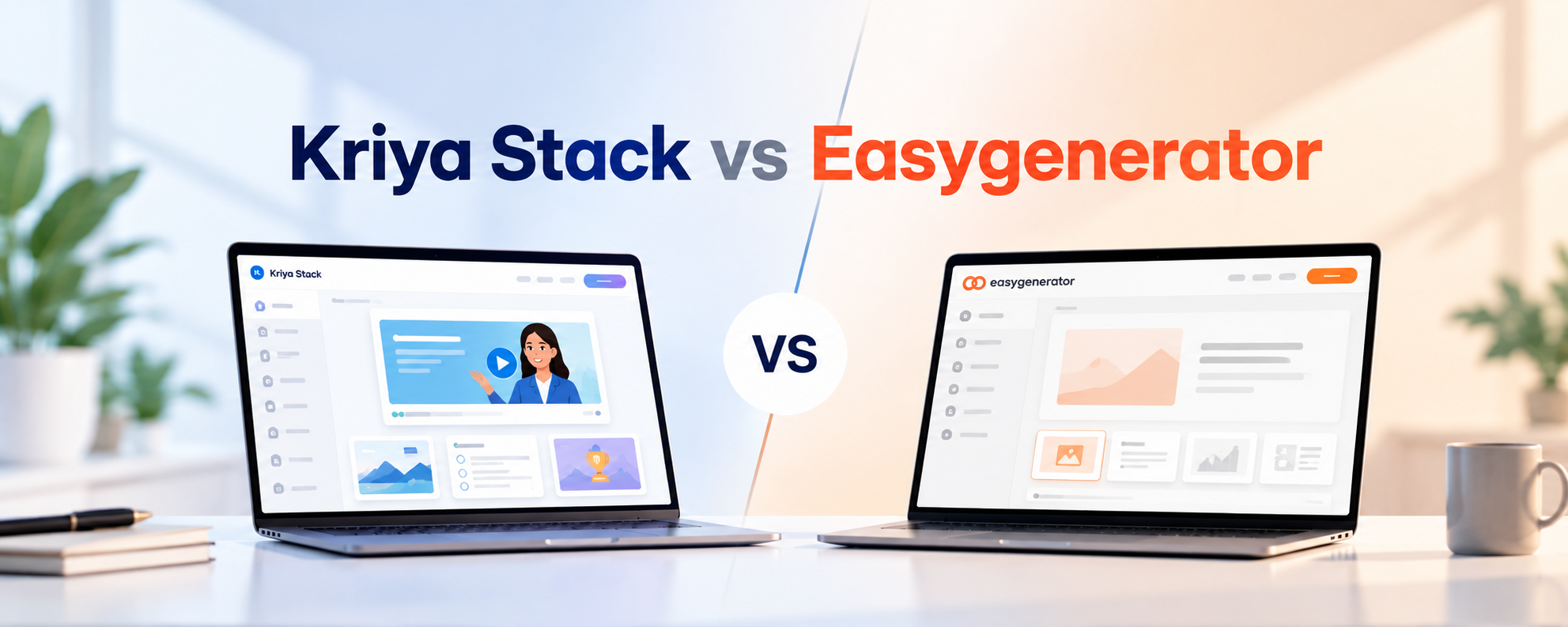
Kriya Stack vs Easygenerator: AI Course Authoring Tool Comparison
Compare Kriya Stack vs Easygenerator across AI course creation, no-code authoring, video, gamification, SCORM, analytics and multilingual learning.
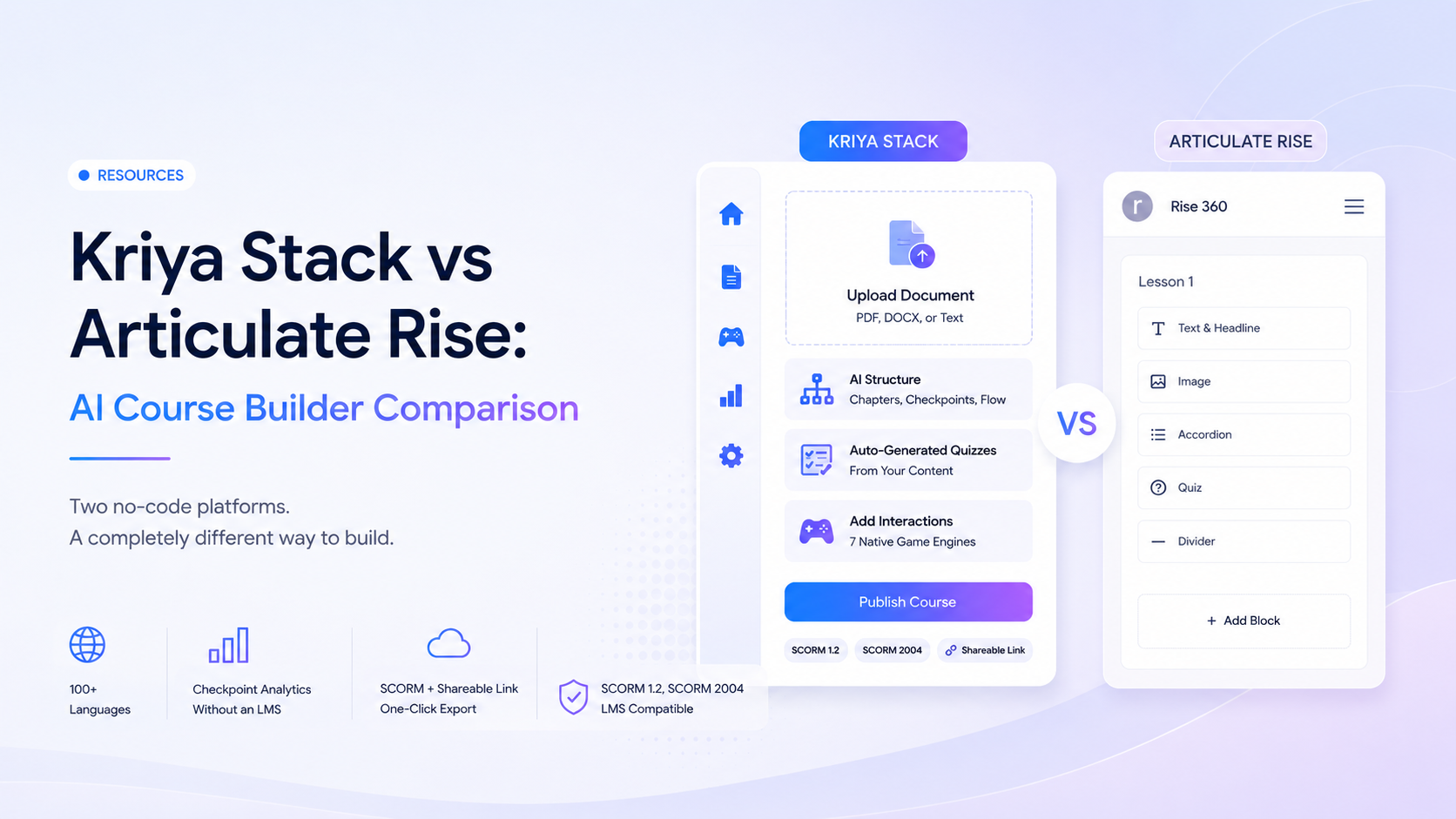
Kriya Stack vs Articulate Rise 360: AI Course Builder Comparison
Kriya Stack vs Articulate Rise: which AI course builder actually saves you time? We compare features, ease of use, and how fast each gets you from document to published SCORM course, no coding, no add-ons for languages or gamification.